





Building a Simple MCP Server in Python
In this article, you will learn what Model Context Protocol (MCP) is and how to build a simple, practical task-tracker MCP server in Python using FastMCP.
Topics we will cover include:
- How MCP works, including hosts, clients, servers, and the three core primitives.
- How to implement MCP tools, resources, and prompts with FastMCP.
- How to run and test your MCP server using the FastMCP client.
Let’s not waste any more time.
Building a Simple MCP Server in Python
Image by Editor
Introduction
Have you ever tried connecting a language model to your own data or tools? If so, you know it often means writing custom integrations, managing API schemas, and wrestling with authentication. And every new AI application can feel like rebuilding the same connection logic from scratch.
Model Context Protocol (MCP) solves this by standardizing how large language models (LLMs) and other AI models interact with external systems. FastMCP is a framework that makes building MCP servers simple.
In this article, you’ll learn what MCP is, how it works, and how to build a practical task tracker server using FastMCP. You’ll create tools to manage tasks, resources to view task lists, and prompts to guide AI interactions.
Understanding the Model Context Protocol
As mentioned, Model Context Protocol (MCP) is an open protocol that defines how AI applications communicate with external systems.
How MCP Works
MCP has three components:
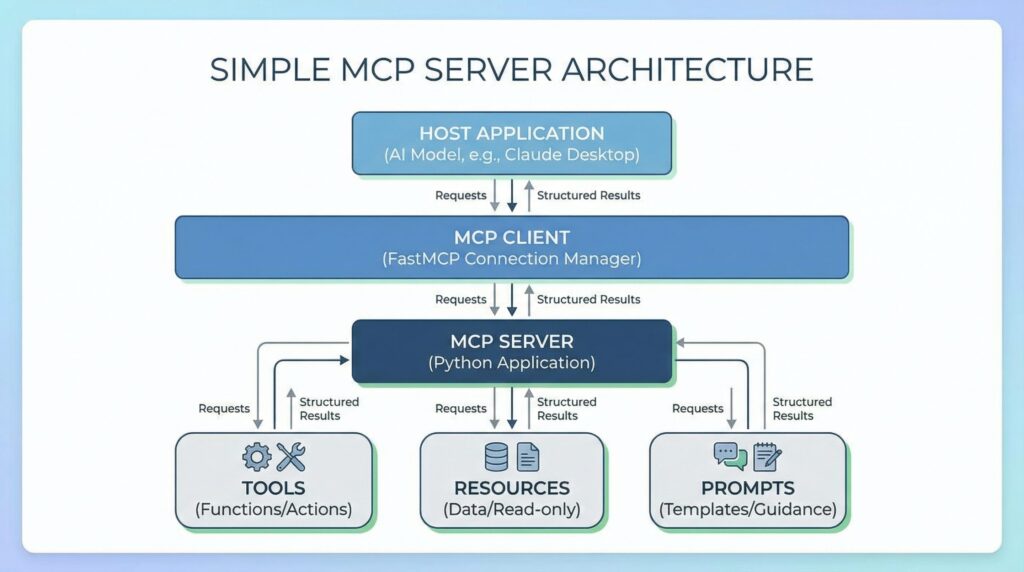
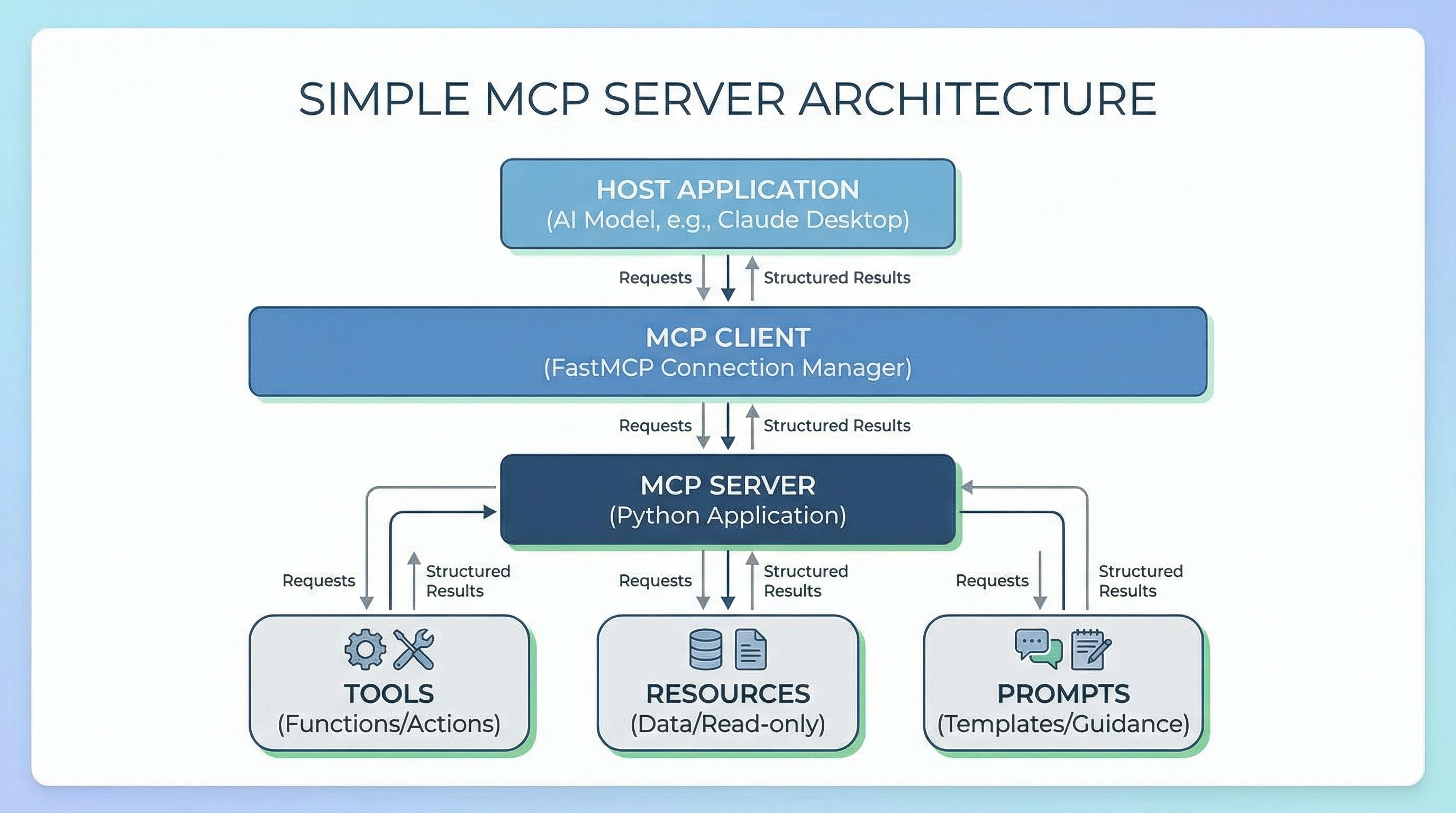
Hosts are the AI-powered applications users actually interact with. The host can be Claude Desktop, an IDE with AI features, or a custom app you’ve built. The host contains (or interfaces with) the language model and initiates connections to MCP servers.
Clients connect to servers. When a host needs to talk to an MCP server, it creates a client instance to manage that specific connection. One host can run multiple clients simultaneously, each connected to a different server. The client handles all protocol-level communication.
Servers are what you build. They expose specific capabilities — database access, file operations, API integrations — and respond to client requests by providing tools, resources, and prompts.
So the user interacts with the host, the host uses a client to talk to your server, and the server returns structured results back up the chain.
To learn more about MCP, read The Complete Guide to Model Context Protocol.
The Three Core Primitives
MCP servers expose three types of functionality:
Tools are functions that perform actions. They’re like executable commands the LLM can invoke. add_task, send_an_email, and query_a_database are some examples of tools.
Resources provide read-only access to data. They allow viewing information without changing it. Examples include lists of tasks, configuration files, and user profiles.
Prompts are templates that guide AI interactions. They structure how the model approaches specific tasks. Examples include “Analyze these tasks and suggest priorities” and “Review this code for security issues.”
In practice, you’ll combine these primitives. An AI model might use a resource to view tasks, then a tool to update one, guided by a prompt that defines the workflow.
Setting Up Your Environment
You’ll need Python 3.10 or later. Install FastMCP using pip (or uv if you prefer):
Let’s get started!
Building a Task Tracker Server
We’ll build a server that manages a simple task list. Create a file called task_server.py and add the imports:
from fastmcp import FastMCP from datetime import datetime |
These give us the FastMCP framework and datetime handling for tracking when tasks were created.
Initializing the Server
Now set up the server and a simple in-memory storage:
mcp = FastMCP(“TaskTracker”)
# Simple in-memory task storage tasks = [] task_id_counter = 1 |
Here’s what this does:
FastMCP("TaskTracker")creates your MCP server with a descriptive name.tasksis a list that stores all tasks.task_id_countergenerates unique IDs for each task.
In a real application, you’d use a database. For this tutorial, we’ll keep it simple.
Creating Tools
Tools are functions decorated with @mcp.tool(). Let’s create three useful tools.
Tool 1: Adding a New Task
First, let’s create a tool that adds tasks to our list:
1 2 3 4 5 6 7 8 9 10 11 12 13 14 15 16 17 | @mcp.tool() def add_task(title: str, description: str = “”) -> dict: “”“Add a new task to the task list.”“” global task_id_counter
task = { “id”: task_id_counter, “title”: title, “description”: description, “status”: “pending”, “created_at”: datetime.now().isoformat() }
tasks.append(task) task_id_counter += 1
return task |
This tool does the following:
- Takes a task title (required) and an optional description.
- Creates a task dictionary with a unique ID, status, and timestamp.
- Adds it to our
taskslist. - Returns the created task.
The model can now call add_task("Write documentation", "Update API docs") and get a structured task object back.
Tool 2: Completing a Task
Next, let’s add a tool to mark tasks as complete:
@mcp.tool() def complete_task(task_id: int) -> dict: “”“Mark a task as completed.”“” for task in tasks: if task[“id”] == task_id: task[“status”] = “completed” task[“completed_at”] = datetime.now().isoformat() return task
return {“error”: f“Task {task_id} not found”} |
The tool searches the task list for a matching ID, updates its status to “completed”, and stamps it with a completion timestamp. It then returns the updated task or an error message if no match is found.
Tool 3: Deleting a Task
Finally, add a tool to remove tasks:
@mcp.tool() def delete_task(task_id: int) -> dict: “”“Delete a task from the list.”“” for i, task in enumerate(tasks): if task[“id”] == task_id: deleted_task = tasks.pop(i) return {“success”: True, “deleted”: deleted_task}
return {“success”: False, “error”: f“Task {task_id} not found”} |
This tool searches for a task, removes it from the list, and returns confirmation with the deleted task data.
These three tools give the model create, read, update, and delete (CRUD) operations for task management.
Adding Resources
Resources let the AI application view data without modifying it. Let’s create two resources.
Resource 1: Viewing All Tasks
This resource returns the complete task list:
@mcp.resource(“tasks://all”) def get_all_tasks() -> str: “”“Get all tasks as formatted text.”“” if not tasks: return “No tasks found”
result = “Current Tasks:\n\n” for task in tasks: status_emoji = “” if task[“status”] == “completed” else “” result += f“{status_emoji} [{task[‘id’]}] {task[‘title’]}\n” if task[“description”]: result += f” Description: {task[‘description’]}\n” result += f” Status: {task[‘status’]}\n” result += f” Created: {task[‘created_at’]}\n\n”
return result |
Here’s how this works:
- The decorator
@mcp.resource("tasks://all")creates a resource with a URI-like identifier. - The function formats all tasks into readable text with emojis for visual clarity.
- It returns a simple message if no tasks exist.
The AI application can read this resource to understand the current state of all tasks.
Resource 2: Viewing Pending Tasks Only
This resource filters for incomplete tasks:
@mcp.resource(“tasks://pending”) def get_pending_tasks() -> str: “”“Get only pending tasks.”“” pending = [t for t in tasks if t[“status”] == “pending”]
if not pending: return “No pending tasks!”
result = “Pending Tasks:\n\n” for task in pending: result += f” [{task[‘id’]}] {task[‘title’]}\n” if task[“description”]: result += f” {task[‘description’]}\n” result += “\n”
return result |
The resource filters the task list down to pending items only, formats them for easy reading, and returns a message if there’s nothing left to do.
Resources work well for data the model needs to read frequently without making changes.
Defining Prompts
Prompts guide how the AI application interacts with your server. Let’s create a helpful prompt:
@mcp.prompt() def task_summary_prompt() -> str: “”“Generate a prompt for summarizing tasks.”“” return “”“Please analyze the current task list and provide:
1. Total number of tasks (completed vs pending) 2. Any overdue or high-priority items 3. Suggested next actions 4. Overall progress assessment
Use the tasks://all resource to access the complete task list.”“” |
This prompt defines a structured template for task analysis, tells the AI what information to include, and references the resource to use for data.
Prompts make AI interactions more consistent and useful. When the AI model uses this prompt, it knows to fetch task data and analyze it in this specific format.
Running and Testing the Server
Add this code to run your server:
if __name__ == “__main__”: mcp.run() |
Start the server from your terminal:
fastmcp run task_server.py |
You’ll see output confirming the server is running. Now the server is ready to accept connections from MCP clients.
Testing with the FastMCP Client
You can test your server using FastMCP’s built-in client. Create a test file called test_client.py and run it:
1 2 3 4 5 6 7 8 9 10 11 12 13 14 15 16 17 18 19 20 21 22 23 24 | from fastmcp import Client import asyncio
async def test_server(): async with Client(“task_server.py”) as client: # List available tools tools = await client.list_tools() print(“Available tools:”, [t.name for t in tools.tools])
# Add a task result = await client.call_tool(“add_task”, { “title”: “Learn MCP”, “description”: “Build a task tracker with FastMCP” }) print(“\nAdded task:”, result.content[0].text)
# View all tasks resources = await client.list_resources() print(“\nAvailable resources:”, [r.uri for r in resources.resources])
task_list = await client.read_resource(“tasks://all”) print(“\nAll tasks:\n”, task_list.contents[0].text)
asyncio.run(test_server()) |
You’ll see your tools execute and resources return data. This confirms everything works correctly.
Next Steps
You’ve built a complete MCP server with tools, resources, and prompts. Here’s what you can do to improve it:
- Add persistence by replacing in-memory storage with SQLite or PostgreSQL.
- Add tools to filter tasks by status, date, or keywords.
- Build prompts for priority analysis or task scheduling.
- Use FastMCP’s built-in auth providers for secure access.
Start with simple servers like this one. As you grow more comfortable, you’ll find yourself building useful MCP servers to simplify more of your work. Happy learning and building!